
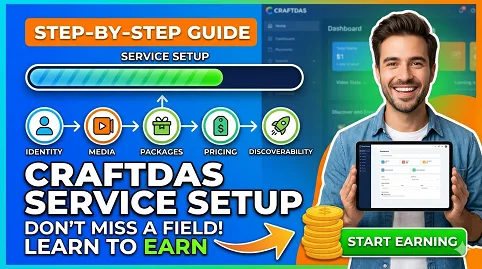

How to Create a Service on Craftdas: The Complete No-Mistake Setup Guide for Beginners
You’ve signed up for Craftdas, the connected creator ecosystem, explored the dashboard, and now you’re staring at the 6-step service creation wizard. Maybe you’ve already clicked through and felt that sinking feeling: “What if I miss something? What if I publish this and it looks unprofessional?”
Take a breath. You’re in the right place.
This guide walks you through every single field, toggle, and text box across all six steps of the Craftdas service builder. No skipping. No guessing. By the end, you’ll understand not just what to type, but why it matters for visibility, trust, and conversion. If you’re new to structured content creation, the SEO Content System UBS v1.1 offers a useful companion framework for writing the descriptions you’ll need here.
Let’s build your first service — field by field, step by step.
Step 1 of 6: Identity — The Core Buyer-Facing Foundation
Step 1 is where most new creators rush. They type a quick title, skip the summary, and paste a thin description. Then they wonder why buyers don’t convert. Don’t do that. Identity is your handshake, your elevator pitch, and your proposal all in one.
Service Title
The first field you see: Service title (0/255 characters). This is the headline buyers see before anything else. It must be clear, client-facing, and keyword-aware — but not robotic.
What to write: A specific outcome-oriented phrase that answers “What will you do for me?” Avoid internal jargon like “Package 1.” Instead, use patterns like:
- “Done-for-you blog post writing with SEO research”
- “Custom low-poly 3D character modeling for indie games”
- “Email welcome sequence copywriting — 5 emails in 5 days”
Include the primary keyword naturally near the beginning. If you’re offering content writing, “content writing” belongs in the first four words. If you’re a 3D artist, “3D modeling” or “Blender character” should lead. Craftdas uses this title across search, sidebars, and previews. Every word counts.
Common mistake: Writing “I will do graphic design” — generic, unbuyable. Fix: “Custom social media reel covers with brand colors — 24-hour delivery.” See the difference? One is a category. The other is a purchase.
Short Summary
Next: Short summary (0/220 characters). This sits directly under the title on your public service page and in listing previews. Think of it as the one-sentence answer to “Why should I keep reading?”
What to write: The biggest benefit plus a differentiator. Formula: [what you do] + [who it’s for] + [why it’s better]. Example for a web design service: “Responsive landing pages for coaches and consultants — designed to convert visitors into booked calls, delivered in 72 hours.”
At 220 characters, you have roughly one and a half sentences. Use them well. Avoid repeating the title verbatim. Instead, expand the promise. If your title says “SEO blog post writing,” your summary might say “Research-backed, keyword-optimized articles that help your site rank — written for SaaS founders and digital marketers who need consistent publishing without the heavy lifting.”
Main Description
Now the big one: Main description. Craftdas gives you a rich text editor — bold, italic, headings, lists, links, images, even HTML. This is your full buyer-facing explanation. Enough detail to guide the next steps.
Structure that works:
- Opening paragraph: Restate the problem and your solution. Empathize. “You know you need regular blog content, but writing takes time you don’t have. I help SaaS founders publish SEO-optimized articles that attract organic traffic — without the stress of doing it yourself.”
- What’s included: Use bullet points. Be precise. Instead of “I’ll write your blog post,” write “One 1,200-word blog post with keyword research, meta description, internal linking suggestions, and one revision round.”
- Process overview: Show the buyer what working with you looks like. “1. You fill out a brief intake form. 2. I research your topic and target keyword. 3. I deliver a draft within 5 business days. 4. You request revisions. 5. I deliver the final draft with SEO checklist.”
- who this is for (and not for): Filtering saves you both time. “Best for SaaS startups needing weekly content. Not ideal for ecommerce product descriptions — see my other service for that.”
- Call to action: Tell them what to do next. “Choose your package below and send me your first topic.”
This description is also an SEO asset. Use your primary keyword naturally in the first 100 words. Add secondary keywords in H2 subheadings. Link to relevant posts on your Craftdas blog — for example, if you mention “SEO research,” link to a post about how SEO content works. The guide to writing posts that Google and AI understand elaborates on this structured approach.
Why this matters beyond the sale: Craftdas uses this description for SEO snippets and search appearance. A well-structured description helps both potential buyers and search engines understand your service. And remember, your Craftdas content isn’t just for display — it builds authority over time.
Step 2 of 6: Media Setup — Cover, Gallery, Demo Links, Audio, and Video
Step 2 shapes how buyers first experience your service visually. An empty gallery or missing cover signals incompleteness. Fill every relevant field.
Service Cover Image
Craftdas asks for a 16:9 frame, maximum 5MB. JPG, PNG, WebP, or GIF. Upload starts immediately — there’s no separate “save” step for the upload itself.
What to use: A clean horizontal image that introduces the service. For a writing service, consider a styled screenshot of a document with your byline. For 3D modeling, a render of your best character on a neutral background. For web design, a device mockup showing a live site. Avoid busy collages — single-subject, center-composed images feel stronger.
The cover also becomes your social sharing preview when someone links your service on Facebook, LinkedIn, or Twitter. Craftdas pulls this into the Open Graph image tag. Make it count. A well-chosen cover supports the broader principle of building a high-signal brand ecosystem where every visual element reinforces your authority.
Service Preview Gallery
You can add up to 10 images, 5MB each, PNG, JPG, or WebP. These are extra visuals that explain your service faster than text. Use them to show:
- Before/after comparisons (for editing or design services)
- Process screenshots (your research spreadsheet, your Blender viewport, your draft in progress)
- Deliverable examples (the final blog post, the rendered 3D model, the exported PDF)
- Client results or testimonials (with permission)
Drop images or click anywhere to browse. Upload happens immediately. You can reorder or remove later. Don’t leave this empty — services with 5+ gallery images consistently outperform those with only a cover.
Service Demo Links
Add public URLs pointing to demos, walkthroughs, examples, landing pages, or external previews. Each link appears as a clickable reference. Use these to show live examples: a published article you wrote, a Sketchfab embed of your 3D model, a live landing page you designed.
Format: One link per line. Add clear labels if the interface allows — otherwise, make the URL itself descriptive (e.g., use a pretty permalink, not a raw Dropbox link).
Service Audio Sample
Optional but useful for voice-over artists, musicians, or podcast editors. Craftdas supports four providers: YouTube, Spotify, SoundCloud, and Audiomack. Paste one provider link only. Click Validate — the preview updates instantly. If validation fails, check that your link is a direct track or video URL, not a playlist.
Service Video Preview
Also optional, also four providers: YouTube, Vimeo, Loom, and Wistia. Paste a video link and click Preview. This is a preview only — it won’t play inline on all surfaces, but it adds a rich media layer to your service page. Use a 60-90 second explainer video if you have one. If not, a well-edited Loom walkthrough works surprisingly well.
Step 3 of 6: Package Structure — The Offer Architecture
Step 3 is where many new creators freeze. Empty packages. Vague names. No pricing. Let’s fix that.
Craftdas lets you create multiple packages per service. Each package has its own name, description, pricing, timeline, revisions, media, deliverables, and requirements. Think of packages as the SKU-level detail. The service is the storefront; the packages are what people actually buy.
Package Name and Display Title
Name: Internal label shown in selectors. Use “Starter,” “Standard,” “Premium” — or descriptive labels like “Basic Blog Post,” “SEO Article + Strategy,” “Done-for-You Content Bundle.” Keep it short.
Display title: Client-facing. “Fast social promo edit” or “Full brand launch package.” This explains the offer in one line. Don’t duplicate the name — use this field to add context.
Package Description
Explain what the buyer gets. Direct, outcome-focused, scannable. Instead of “I’ll write content,” write “One 800-word blog post optimized for your target keyword, including meta title, meta description, and one complimentary revision. Delivered as a Google Doc and a WordPress-ready draft.”
Best for: This small field helps buyers self-select. “Reels, brand promos, launch edits, product teasers” or “SaaS startups, indie game developers, architectural firms.” Be specific enough that the wrong buyer opts out, and the right buyer feels seen.
Pricing, Timeline, and Revisions
- Price (USD): Set the amount buyers pay. If you’re unsure, research comparable services on Craftdas and benchmark 10-20% below the median until you have reviews. Update later.
- Revisions: How many revision rounds are included. Zero is acceptable if your deliverable is final. One or two is standard for creative services. Unlimited revisions hurt you — set a boundary.
- Delivery days: Use when your turnaround is measured in days (e.g., 5 days for a blog post, 14 days for a 3D character).
- Delivery hours: Use when you offer same-day or 24-hour turnaround. Only set this if you can reliably deliver — missed deadlines destroy reviews.
- Source file: Toggle on if buyers should receive the editable original file (.blend, .psd, .docx, .ai). Many buyers expect this; clarify if it’s included or costs extra.
Preview Gallery and Demo Links (Package-Level)
Each package can have its own image previews and video/audio links. Paste one image URL per line for a clean gallery. Use this to show exactly what that package tier looks like. For example, the Starter package shows a basic blog post screenshot; the Premium package shows the same post plus an SEO report and a content calendar snippet.
Includes, Requirements, Formats, and Outputs
Four text areas — one item per line.
- Includes: Main items or deliverables. “1 blog post (1,200 words),” “Keyword research report,” “Meta description,” “Internal linking suggestions.”
- Requirements: What the buyer must send before you start. “Target keyword,” “Brand style guide,” “Competitor URLs,” “Access to WordPress.”
- Formats: Delivery formats. “Google Doc,” “WordPress draft,” “PDF,” “.blend file,” “.obj and .fbx.”
- Outputs: Final output types. “SEO-optimized article,” “Render-ready scene file,” “Responsive landing page.”
Add at least one package before moving forward. Without packages, Step 4 (Pricing) shows “No packages found yet” and you can’t finalize the service.
Step 4 of 6: Pricing and Affiliate Settings — The Money Layer
Step 4 is where pricing previews, platform fees, and promoter commissions become visible. This step does not let you set package prices again — that happens in Step 3. Step 4 reflects what you already entered.
Service Pricing Overview
You’ll see: “From USD [lowest package price],” promoter toggle (off by default), commission percentage, creator tier cut (25.00%), and package payout estimates.
If you see “From USD 0.00” and “0 packages,” go back to Step 3. Packages must have prices before this screen populates.
Enable Promoter Commission
Toggle this on if you want affiliates or promoters to earn a commission when they refer a buyer. This is service-level — turn it on once, and every package reflects the commission percent against its own price.
Commission percent: Set a percentage (e.g., 10%, 20%). Higher commissions attract more promoters but reduce your net. The platform cut (Tier 1: 25.00%) applies to the remaining amount. Review the “Package payout estimates” table to see your net after deductions.
When to enable: If you’re new and need visibility, offering even a small commission can motivate others to share your service. If you already have an audience, you might keep it off and keep the full amount. You can change this later.
Step 5 of 6: Discoverability Settings — How Buyers Find You
Step 5 controls visibility, search appearance, and tags. This step is short but high-leverage.
Short Summary (Discoverability)
0/280 characters. A separate summary from Step 1’s short summary. This one feeds listings, previews, and search surfaces. Write it fresh. Use keywords naturally. Example: “Professional blog writing and SEO content service for SaaS founders — research-backed articles delivered in 5 days. Starter, Standard, and Premium packages available.”
Tags
Add relevant tags separated by commas or Enter. These help Craftdas categorize your service and surface it in filtered searches. Use 5-10 tags that describe:
- Your service type: “blog writing,” “SEO content,” “copywriting,” “3D modeling,” “Blender character,” “web design”
- Your audience: “SaaS,” “indie game,” “small business,” “coaches”
- Your deliverable: “WordPress-ready,” “source file included,” “same-day delivery”
Tags are not hashtags — don’t use # or spaces in multi-word tags. Use “content-writing” not “content writing” if the system hyphenates, otherwise let commas separate phrases.
Visibility
Toggle between Public and (presumably) Private or Unlisted. Keep it Public unless you’re still testing. A public service appears in Craftdas search and your portfolio.
SEO Settings (Side Panel)
The side panel visible across all steps includes:
- Focus keyword: The primary keyword you want this service to target. Pick one phrase: “content writing service,” “Blender character modeling,” “landing page design.”
- SEO title (0/60): This becomes the clickable blue headline in Google results. Different from your service title. Example: “SEO Blog Writing Service for SaaS — Craftdas” (under 60 characters). Include your keyword near the start.
- Meta description (0/160): The snippet below the blue headline. “Research-backed, keyword-optimized blog posts for SaaS founders. 5-day delivery, one revision included. Starter, Standard, Premium packages.” Keep it under 160 characters, include the keyword, and add a soft call to action.
- Canonical URL: Leave this blank — Craftdas auto-generates it. Only set if you have a preferred public URL.
- Robots directive: Leave blank for index,follow (recommended).
- Advanced social sharing: Optional OpenGraph and Twitter overrides. If you want richer share cards, customize the OG title, description, and image. Otherwise, Craftdas pulls these from your service identity and cover image.
The side panel also shows a Snippet Preview and Social Preview. Scroll down and review how your title and description will appear in search results and on social media. Adjust until it looks clickable and clear.
Step 6 of 6: Review — The Final Sanity Check
Step 6 gives you a clean snapshot of everything before you hit Publish. Don’t skip it.
Service Overview
Shows: title, starting price, cover image status, draft/public visibility, short summary, and description preview. If any field says “No short summary yet” or “No description yet,” go back and fill it. An incomplete service looks unprofessional even in draft.
Discoverability Summary
Shows your 280-character discoverability summary, tag count, tags list, and visibility setting. Verify tags are relevant and the summary includes your focus keyword.
Pricing Snapshot
Shows: example pricing, platform fee (25.00%), creator gross, creator net, affiliate switch status, and affiliate percentage. Confirm these numbers match your expectations. If something looks off, adjust the package price in Step 3 or the promoter commission in Step 4.
Packages Review
Lists every package with its offer, delivery promise, revisions, outputs, and preview media. Scan for missing information. If a package has no description or no preview images, fix it before publishing. Buyers compare packages side by side — make sure each tier is distinct and the value progression is obvious.
If the review says “No packages added yet,” you must return to Step 3. A service without packages cannot be published.
Before You Hit Publish: The 10-Point Checklist
- Title is client-facing and keyword-inclusive. Does it answer “What will you do for me?” instantly?
- Short summary (Step 1) sells the benefit — not just lists the feature.
- Main description uses headings, bullets, and a clear process — not a wall of text.
- Cover image is uploaded and 16:9. Social preview looks clickable.
- Gallery has at least 3 images showing deliverables, process, or results.
- At least one demo link or video preview adds credibility.
- Packages are complete: name, description, price, delivery days, revisions, includes, requirements, formats, outputs.
- Package pricing populates correctly in Step 4. Net payout matches expectations.
- Discoverability summary (Step 5) is unique and includes focus keyword.
- SEO fields are filled: focus keyword, SEO title (under 60 chars), meta description (under 160 chars). Snippet preview reviewed.
What Happens After You Publish
Your public service link appears automatically in the side panel under “Creator preview.” Before publishing, it shows “will appear after publish.” After publishing, you’ll get a clean slug and a shareable URL.
But publishing is just the start. A service on Craftdas works best when it’s part of a larger system — blog posts pointing to it, portfolio pieces referencing it, and consistent publishing on your Craftdas blog driving traffic to it. If you haven’t yet, read the Content Writing Blogger Roadmap or the Graphic Design Blogging Roadmap — depending on your niche — to understand how your service fits into a monetized content strategy.
You might also want to list complementary digital products on Craftdas Market. A writing service pairs well with a blog post template. A 3D modeling service pairs well with a texture pack. The ecosystem rewards creators who connect the dots between content, products, and services — what the Complete Income Architecture framework calls turning a blog into a client-and-affiliate engine.
And if you’re wondering why your newly published service (or your blog posts) aren’t ranking immediately, remember that ranking takes time — even when you do everything right. Google needs to crawl, index, and evaluate your content. Consistency over months wins.
Common Questions Beginners Ask
Can I save a draft and come back?
Yes. Every step has a “Save draft” button. Your draft appears under Studio > Drafts. You can also use the side panel at any time to save progress.
What if I need to change something after publishing?
You can edit a published service. Changes may require re-review depending on the platform’s moderation settings. Major changes to pricing or deliverables should be communicated to existing clients.
How many packages should I create?
Start with two or three. One low-cost entry point (Starter), one mid-range (Standard), one premium (Premium or Done-for-You). More than four packages can overwhelm buyers. Fewer than two limits choice and reduces perceived value.
What’s the difference between Step 1 summary and Step 5 summary?
Step 1’s short summary (220 characters) appears directly on your service page under the title. Step 5’s summary (280 characters) feeds search listings and external previews. They can overlap but should be written independently for their contexts.
Should I enable the promoter commission?
If you want others to share your service in exchange for a cut, yes. Start with 10-15%. You can adjust later. Even a small commission can motivate affiliates who already have an audience in your niche.
Why does my service say “Untitled service”?
You haven’t filled in the title yet in Step 1. The side panel shows the working title. Update it and save — the panel updates immediately.
Final Word: Don’t Let Perfectionism Stall Your Launch
The Craftdas service builder gives you everything you need to present a professional, buyable offer. But the best service is a published service. You can improve descriptions, swap images, and adjust pricing after launch. What you can’t do is earn from a draft that never goes live.
Start with one service. Fill every field in this guide. Hit publish. Then create your next one — faster, smarter, and with the confidence of someone who has already shipped.
Your buyers are searching. Now you know exactly how to show up.
Comments
No comments yet. Start the conversation.