
Introduction
For many creatives, content creation is a major part of building visibility, attracting clients, and growing a personal brand. Designers, photographers, bloggers, content creators, writers, artists, and freelancers all create content to show their work, share ideas, educate their audience, and build trust. However, creating content without tracking results can make growth difficult.
Many creatives post regularly on platforms like Instagram, LinkedIn, TikTok, YouTube, Pinterest, or their personal blogs, but they do not always know which content is actually helping them grow. They may look at likes or comments casually, but they may not have a clear system for measuring performance over time. This often leads to guesswork.
A content dashboard solves this problem. A content dashboard is a visual summary of your content performance. It helps you see important numbers such as reach, likes, comments, shares, saves, clicks, engagement rate, and follower growth in one place.
Excel is one of the best tools creatives can use to build a simple content dashboard. It is easy to access, flexible, and powerful enough to organize data, calculate metrics, and create charts. You do not need to be an expert data analyst to start. With basic Excel knowledge, you can build a simple dashboard that supports smarter creative decisions.
What Is a Content Dashboard?
A content dashboard is a visual tool that shows the performance of your content in a clear and organized way. It takes raw data from your posts, videos, blog articles, or portfolio updates and turns them into simple summaries, charts, and insights.
For example, instead of only recording that one Instagram post received 500 likes and another received 200 likes, a dashboard helps you compare performance across multiple posts. It can show which platform gives you the most engagement, which content type performs best, and which topics attract the most attention.
A content dashboard can answer questions such as:
- What content performed best this month?
- Which platform brought the most engagement?
- Which posts received the most saves or shares?
- What content type attracts the most clicks?
- Is my engagement rate improving over time?
- Which topics should I create more often?
For creatives, this is very useful because it turns content performance into something easier to understand and act on.
Why Creatives Need a Content Dashboard
A dashboard is important because it helps creatives make decisions based on evidence, not assumptions. Creativity is powerful, but data helps you know whether your creative work is achieving its goal.
For example, a designer may assume that people enjoy seeing finished logo designs. But after tracking content, the designer may discover that posts showing the design process perform better. A blogger may think opinion articles are the best content, but the dashboard may show that practical tutorials receive more views and clicks.
A content dashboard can help creatives:
- Measure content performance more clearly
- Understand audience interests
- Identify best-performing platforms
- Compare content types
- Track growth over time
- Improve future content strategy
- Build a stronger personal brand
- Attract clients with evidence of performance
For freelancers, a dashboard can also help when creating reports for clients. If you manage content for a brand or business, a simple dashboard can make your work look more professional.
Step 1: Decide the Purpose of Your Dashboard
Before building your dashboard in Excel, you need to know why you are creating it. A dashboard should not just contain random numbers. It should help you answer specific questions.
Your purpose may be to:
- Grow your personal brand
- Increase engagement
- Get more website clicks
- Attract clients
- Improve content consistency
- Understand audience interests
- Compare platforms
- Track monthly growth
For example, if your goal is to attract clients, your dashboard should include metrics like profile visits, website clicks, portfolio clicks, direct messages, and client inquiries. If your goal is content growth, you may focus more on reach, likes, comments, shares, saves, and engagement rate.
Defining your goal makes your dashboard more useful. It helps you choose the right data to track and prevents the dashboard from becoming too crowded.
Step 2: Know the Data You Need to Collect
The next step is to decide what data you will collect. A dashboard is only useful when the data behind it is organized properly.
For a simple content dashboard, you can collect the following data:
- Post date
- Platform
- Content title
- Content topic
- Content type
- Reach or views
- Likes
- Comments
- Shares
- Saves
- Clicks
- Followers gained
- Client inquiries
- Total engagement
- Engagement rate
- Notes
Each of these data points gives useful information. The post date helps you understand when content was published. The platform shows where the content was posted. The content topic shows what the post is about, while the content type shows the format, such as carousel, video, blog post, reel, image post, or tutorial.
Step 3: Set Up Your Excel Data Table
Open Excel and create a new workbook. Rename the first sheet as Content Data. This sheet will contain the raw data for your dashboard.
In the first row, create column headings such as:
- Date Posted
- Platform
- Content Title
- Content Topic
- Content Type
- Reach
- Likes
- Comments
- Shares
- Saves
- Clicks
- Followers Gained
- Client Inquiries
- Total Engagement
- Engagement Rate
- Notes
After creating the headings, format the data as a table. In Excel, you can highlight the data range and press Ctrl + T. This turns your data into an official Excel table, which makes it easier to sort, filter, and update.
Using a table is important because when you add new rows, Excel can automatically expand the table. This makes your dashboard easier to maintain.
Step 4: Enter Your Content Data Consistently
After setting up your table, start entering your content data. You can collect this data from social media analytics, blog analytics, YouTube Studio, Instagram Insights, LinkedIn analytics, TikTok analytics, or Google Analytics.
It is important to record your data consistently. For example, you can decide to record performance after 7 days of posting. This means every post should be measured after the same time period.
If you record one post after 24 hours and another after 30 days, the comparison may not be fair. A 30-day-old post naturally has more time to gain views and engagement than a post that was published yesterday.
A good simple method is:
- Track short-term performance after 7 days
- Track monthly performance at the end of each month
- Update the dashboard weekly or monthly
Step 5: Calculate Total Engagement
Total engagement shows the total number of actions people took on your content. It is usually calculated by adding likes, comments, shares, and saves.
Total Engagement = Likes + Comments + Shares + Saves
For example, if a post has 300 likes, 40 comments, 50 shares, and 120 saves, the total engagement will be:
300 + 40 + 50 + 120 = 510 total engagements
In Excel, if Likes are in column G, Comments in column H, Shares in column I, and Saves in column J, you can use:
=G2+H2+I2+J2This formula helps you measure the overall interaction on each post.
Step 6: Calculate Engagement Rate
Engagement rate is one of the most useful metrics for measuring content performance. It shows the percentage of people reached who engaged with your content.
Engagement Rate = Total Engagement ÷ Reach × 100
For example, if a post has 510 total engagements and 4,000 reach:
510 ÷ 4,000 × 100 = 12.75%
In Excel, if Total Engagement is in column N and Reach is in column F, the formula can be:
=N2/F2*100Engagement rate is important because it allows fair comparison. A post with 500 likes from 5,000 reach may be stronger than a post with 1,000 likes from 50,000 reach because the first post had a higher percentage of people engaging.
Step 7: Create a Dashboard Sheet
After creating your raw data table, create a second sheet and name it Dashboard. This is where your charts and summaries will appear.
Your dashboard should be clean and easy to understand. Do not place too many charts or numbers on one page. A good dashboard should show only the most important information.
For a simple content dashboard, you can include:
- Total reach
- Total engagement
- Average engagement rate
- Total clicks
- Followers gained
- Top-performing platform
- Best-performing content type
- Top five posts
- Engagement by platform chart
- Reach over time chart
- Content type performance chart
Step 8: Add Key Performance Indicators
Key Performance Indicators, also called KPIs, are the main numbers that show how your content is performing.
For your dashboard, you can create KPI boxes for:
- Total Reach
- Total Engagement
- Average Engagement Rate
- Total Clicks
- Followers Gained
- Client Inquiries
These numbers should be placed at the top of your dashboard because they give a quick summary.
For example:
- Total Reach: 45,000
- Total Engagement: 5,800
- Average Engagement Rate: 12.4%
- Total Clicks: 950
- Followers Gained: 320
- Client Inquiries: 12
Step 9: Use Pivot Tables to Summarize Data
Pivot Tables are one of the most useful Excel features for dashboard creation. They help you summarize data quickly.
To create a Pivot Table:
- Click inside your data table.
- Go to Insert.
- Select Pivot Table.
- Choose New Worksheet or Existing Worksheet.
- Drag fields into Rows, Columns, Values, and Filters.
You can create Pivot Tables for:
- Total engagement by platform
- Average engagement rate by content type
- Total reach by month
- Clicks by platform
- Client inquiries by content topic
- Top posts by engagement
For example, if you want to know which platform performs best, you can place Platform in Rows and Total Engagement in Values. Excel will summarize the total engagement for each platform.
Step 10: Create Charts for Your Dashboard
Charts make your dashboard visual and easier to understand. For creatives, this is especially helpful because visuals make data more engaging.
You can create different types of charts:
- A bar chart to compare engagement by platform
- A line chart to show reach over time
- A column chart to compare content types
- A pie chart to show content distribution
- A table to show top-performing posts
For example, a bar chart can show that LinkedIn has the highest client inquiries, while Instagram has the highest reach. A line chart can show whether your engagement is improving month by month.
Your charts should be simple and clear. Avoid using too many colours or complicated visuals. The goal is to make the information easy to understand.
Step 11: Add Filters or Slicers
Filters and slicers help you interact with your dashboard. They allow you to view specific information without changing the whole table.
You can add slicers for:
- Platform
- Content Type
- Content Topic
- Month
With slicers, you can click on “Instagram” and see only Instagram performance. You can click on “Blog Post” and see only blog post results. This makes your dashboard more useful because you can explore your data in different ways.
Step 12: Analyze the Dashboard
After building the dashboard, the most important step is analysis. Do not just look at the charts; ask questions.
Look at your dashboard and ask:
- Which content performed best?
- Why did it perform well?
- Which platform gave the best results?
- Which content type got the highest engagement?
- Which topics brought the most clicks?
- Which posts attracted followers or clients?
- What should I create more of?
- What should I improve?
For example, if your dashboard shows that tutorial posts have the highest saves, you may decide to create more tutorials. If behind-the-scenes videos get more comments, you may include more process-based content. If LinkedIn brings more client inquiries, you may focus more on professional content there.
Step 13: Use Insights to Improve Your Content Strategy
The purpose of building a dashboard is not just to make your data look attractive. The real purpose is to improve your content strategy.
If your dashboard shows that educational content performs best, create more educational posts. If your audience responds more to personal stories, include more storytelling. If your content gets views but few clicks, improve your call-to-action. If your posts get likes but no inquiries, create content that clearly explains your services.
Data should guide your next action. For example, a designer may find that “logo design process” posts get more saves than “final logo reveal” posts. This means the audience values learning the process. The designer can then create more posts showing sketches, decisions, colour choices, and before-and-after designs.
Common Mistakes to Avoid When Building a Dashboard
1. Tracking Too Many Metrics
A dashboard should be simple. Do not track every possible number. Focus on the metrics that connect to your goal.
2. Using Poorly Organized Data
If your raw data is messy, your dashboard will also be confusing. Keep your data table clean and consistent.
3. Ignoring Engagement Rate
Many creatives focus only on likes or views. Engagement rate gives a better picture of how strongly people respond to your content.
4. Not Updating the Dashboard
A dashboard is useful only when it is updated. Set a weekly or monthly schedule for entering new data.
5. Making the Dashboard Too Crowded
Avoid adding too many charts, colours, and text. A professional dashboard should be clean, simple, and easy to read.
6. Not Acting on the Insights
The biggest mistake is collecting data without using it. If the dashboard shows a clear pattern, use that insight to improve your content.
Example of a Simple Dashboard Layout
A practical Excel dashboard can be arranged like this:
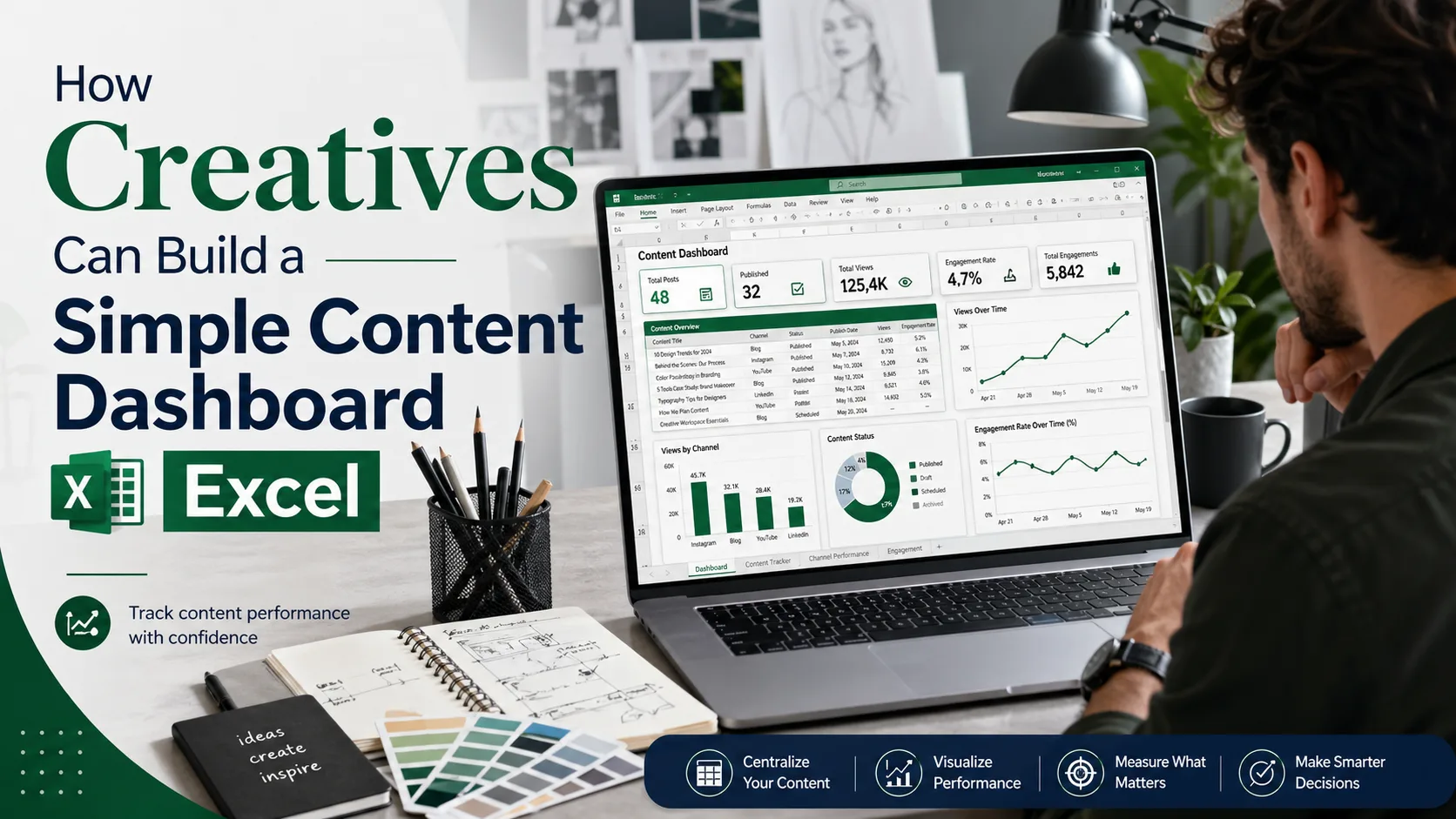
- Top section: KPI cards showing total reach, total engagement, average engagement rate, clicks, followers gained, and inquiries.
- Middle section: Charts showing engagement by platform, reach over time, and content type performance.
- Bottom section: A table showing the top five best-performing posts.
- Side section: Filters for platform, content type, and month.
This layout is simple, professional, and easy to understand.
How Often Should You Update Your Dashboard?
How often you update your dashboard depends on how frequently you post.
- If you post daily, update the dashboard weekly.
- If you post a few times a week, update it weekly or every two weeks.
- If you post occasionally, update it monthly.
For most creatives, weekly updates are good for short-term tracking, while monthly reviews are better for strategy.
At the end of each month, review your dashboard and write down three key insights:
- What worked best?
- What did not work well?
- What will I improve next month?
This habit helps you grow intentionally.
Conclusion
A content dashboard is a practical tool that helps creatives understand their content performance and make better decisions. Instead of relying on guesswork, creatives can use Excel to organize data, calculate engagement, create charts, and identify useful patterns.
Building a dashboard does not require advanced technical skills. With a simple Excel table, formulas, Pivot Tables, and charts, any creative can start tracking performance professionally.
For designers, bloggers, content creators, photographers, and freelancers, a content dashboard can reveal what content works best, which platforms bring results, and how to improve future strategy. It helps you create with purpose, measure progress, and grow more confidently.
Creativity becomes more powerful when it is supported by data. By building a simple content dashboard using Excel, creatives can turn their content performance into clear insights and use those insights to build stronger creative brands.