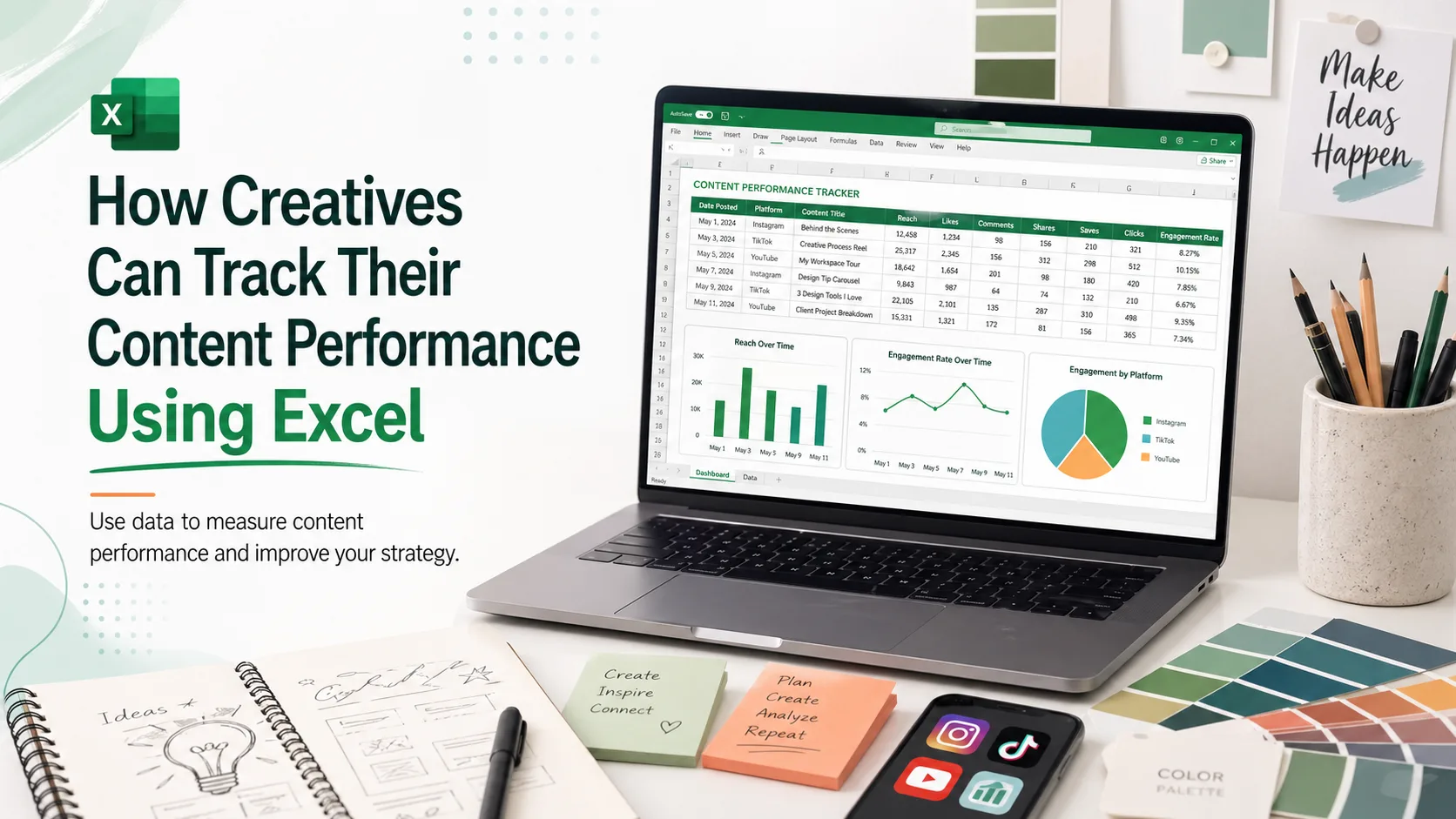

How Creatives Can Track Their Content Performance Using Excel
Category: Data Analysis for Creatives
Introduction
Creating content is one thing, but knowing whether the content is performing well is another important part of creative growth. Many creatives post designs, videos, blog articles, photos, tutorials, or social media content without tracking how well each post performs. They may only look at likes or comments casually, but they do not record the data in a structured way.
For creatives, this can lead to guesswork. You may assume your audience likes a certain type of content, but without tracking performance, you may not have clear proof. This is where Excel becomes useful.
Excel is not only for accountants or business analysts. It is also a powerful tool creatives can use to monitor their content, understand audience behaviour, and improve their creative strategy. By tracking your content performance in Excel, you can easily identify what works, what does not work, and what you should improve.
What Is Content Performance?
Content performance refers to how well your content achieves its purpose. For a creative, content may include social media posts, blog articles, YouTube videos, design projects, portfolio updates, newsletters, or promotional materials.
The performance of content can be measured using different metrics such as views, likes, comments, shares, saves, clicks, reach, engagement rate, website visits, and client inquiries.
For example, if you post a design tutorial on Instagram and it receives many saves and shares, it may mean your audience finds it useful. If you publish a blog post and people spend more time reading it, it may show that the topic is valuable. If a post brings people to your portfolio or service page, it may be helping you attract opportunities.
Why Creatives Should Track Content Performance
Many creatives focus only on creating more content. While consistency is important, improvement is even more important. If you keep creating without measuring results, you may repeat the same mistakes or miss opportunities to grow.
Tracking content performance helps creatives make better decisions. It shows which content formats attract attention, which topics interest the audience, and which platforms produce the best results.
For example, a graphic designer may discover that posts showing the design process perform better than posts showing only the final design. A content creator may notice that short educational videos get more shares than general lifestyle posts. A blogger may find that practical guides bring more traffic than opinion-based articles.
Why Use Excel for Content Tracking?
Excel is one of the easiest tools for tracking content performance because it is simple, flexible, and widely available. You do not need to be a data expert to use it. With basic Excel skills, you can organize your content data, calculate important metrics, and create simple charts.
Excel allows you to keep all your content information in one place. You can record the date you posted, the platform you used, the content topic, the format, and the results. Over time, this creates a useful record of your creative performance.
Another advantage of Excel is that it helps you compare your content. You can quickly see which post had the highest engagement, which platform brought the most traffic, or which topic performed best.
Important Metrics Creatives Should Track
1. Date Posted
The date posted helps you know when each content was published. This is useful for identifying posting patterns. For example, you may discover that posts shared on weekends perform better than posts shared during weekdays.
2. Platform
The platform shows where the content was posted. This could be Instagram, LinkedIn, TikTok, YouTube, Facebook, X, Pinterest, your blog, or your website. Tracking platforms helps you know where your audience responds best.
3. Content Title or Topic
This is the name or main idea of the content. Recording topics helps you identify the subjects your audience enjoys most.
4. Content Type
Content type refers to the format of the content. This could be a carousel, reel, short video, blog post, infographic, image post, tutorial, case study, or newsletter.
5. Views or Reach
Views show how many times your content was seen. Reach shows how many unique people saw it. These metrics help you understand visibility.
6. Likes
Likes show basic approval or interest. However, likes should not be the only metric you focus on. A post may have fewer likes but more saves, shares, or comments, which may make it more valuable.
7. Comments
Comments show that your content encouraged people to respond. This can be a strong sign of audience interest or conversation.
8. Shares
Shares show that people found your content valuable enough to send to others. For creatives, shares can help increase visibility and attract new followers.
9. Saves
Saves are very important because they show that people want to return to your content later. Educational posts, tutorials, checklists, and guides often get many saves.
10. Clicks
Clicks show whether your content encouraged people to take action. This could include clicking a blog link, portfolio link, product link, or service page.
11. Followers Gained
This shows how many new followers came after a post. It helps you know which content attracts new people to your brand.
12. Client Inquiries
For freelancers or service-based creatives, this is very important. A post may not get many likes, but if it brings client messages, it is highly valuable.
13. Engagement Rate
Engagement rate measures how actively people interact with your content. It is often more useful than likes alone.
A simple formula is:
Engagement Rate = Total Engagement ÷ Reach × 100
For example, if a post has 500 total engagements and 5,000 reach:
500 ÷ 5,000 × 100 = 10% engagement rate
How to Create a Content Performance Tracker in Excel
Step 1: Open a New Excel Workbook
Start by opening Excel and creating a new workbook. Rename the first sheet as Content Tracker. This sheet will contain all your content performance data.
Step 2: Create Your Column Headings
In the first row, create headings such as:
- Date Posted
- Platform
- Content Title
- Content Type
- Views or Reach
- Likes
- Comments
- Shares
- Saves
- Clicks
- Followers Gained
- Client Inquiries
- Total Engagement
- Engagement Rate
- Notes
Step 3: Enter Your Content Data
After posting content, record the performance numbers after a specific period. For example, you can record results after 24 hours, 3 days, 7 days, or 30 days.
It is better to choose one consistent tracking period. A good method is to track short-term performance after 7 days and long-term performance after 30 days.
Step 4: Calculate Total Engagement
Total engagement is the sum of likes, comments, shares, and saves.
In Excel, if Likes are in column F, Comments in column G, Shares in column H, and Saves in column I, your formula for Total Engagement can be:
=F2+G2+H2+I2Step 5: Calculate Engagement Rate
If Total Engagement is in column M and Reach is in column E, the engagement rate formula can be:
=M2/E2*100You can format the result as a percentage in Excel. Engagement rate helps you compare posts more fairly.
Step 6: Add Notes
The notes column is useful for recording observations such as:
- Posted in the evening
- Used a strong headline
- Tutorial format performed well
- Many comments asked for part two
- Low engagement, maybe title was weak
How to Analyze Your Content Performance in Excel
1. Identify Your Best-Performing Content
Sort your table by engagement rate, saves, shares, or clicks. This will show you which posts performed best.
If your best-performing posts are tutorials, it means your audience may prefer educational content. If your best posts are behind-the-scenes content, it may mean your audience enjoys seeing your creative process.
2. Compare Platforms
Use Excel to compare how your content performs across different platforms. For example, you may discover that Instagram gives you more views, but LinkedIn brings more client inquiries.
3. Compare Content Types
You can compare reels, carousels, blog posts, infographics, and images to know which format performs best.
4. Track Growth Over Time
By tracking your content every week or month, you can see whether your brand is growing. You can monitor follower growth, engagement rate, website clicks, and inquiries over time.
5. Find Content Gaps
Content gaps are areas your audience cares about but you have not covered enough. For example, if posts about Excel perform well but you have only written two posts on Excel, that may be a gap.
Using Pivot Tables for Better Insights
Once your tracker grows, you can use Pivot Tables in Excel to summarize your data. Pivot Tables help you analyze large amounts of data quickly.
For example, you can create a Pivot Table to show:
- Total engagement by platform
- Average engagement rate by content type
- Total clicks by topic
- Client inquiries by platform
- Top-performing content categories
This makes your analysis more professional and easier to understand.
Creating Simple Charts in Excel
Charts make your data easier to understand. You can create simple charts such as:
- Bar charts to compare platforms
- Line charts to show growth over time
- Pie charts to show content type distribution
- Column charts to compare engagement by topic
For example, a line chart can show whether your engagement rate is increasing month by month. A bar chart can show which platform brings the most clicks.
How Content Tracking Helps Improve Your Creative Strategy
Tracking content performance is not just about collecting numbers. The real purpose is to improve your creative strategy.
If your data shows that tutorial posts get more saves, create more tutorials. If personal stories get more comments, include more storytelling. If LinkedIn brings more professional opportunities, spend more time building your LinkedIn presence. If blog posts bring website traffic, publish more detailed articles.
Data helps you understand what your audience values. It gives you direction and helps you avoid wasting time on content that does not support your goals.
Common Mistakes to Avoid
1. Tracking Too Many Metrics at Once
As a beginner, do not overwhelm yourself with too many numbers. Start with the most important metrics such as reach, likes, comments, shares, saves, clicks, and engagement rate.
2. Focusing Only on Likes
Likes are useful, but they do not tell the full story. Saves, shares, comments, clicks, and inquiries may show deeper interest.
3. Not Tracking Consistently
If you track content once and stop, you will not get useful insights. Tracking should be done regularly.
4. Comparing Posts Unfairly
Do not compare a post tracked after 24 hours with another tracked after 30 days. Use a consistent tracking period.
5. Ignoring Context
Numbers need interpretation. If a post performs poorly, check the topic, timing, headline, format, and platform before judging it.
Simple Excel Tracker Example
Your Excel tracker can look like this:
| Date Posted | Platform | Topic | Type | Reach | Likes | Comments | Shares | Saves | Clicks | Total Engagement | Engagement Rate | Notes |
|---|---|---|---|---|---|---|---|---|---|---|---|---|
| 05/04/2026 | Design Tips | Carousel | 4,000 | 300 | 40 | 50 | 120 | 20 | 510 | 12.75% | High saves | |
| 07/04/2026 | Personal Branding | Text Post | 2,500 | 180 | 35 | 20 | 60 | 45 | 295 | 11.80% | Good discussion | |
| 10/04/2026 | Blog | Excel for Creatives | Article | 1,200 | 80 | 10 | 15 | 30 | 100 | 135 | 11.25% | High clicks |
Conclusion
Excel is a practical and powerful tool for creatives who want to track their content performance and grow intentionally. It helps you organize your content data, measure engagement, compare platforms, identify best-performing topics, and make better creative decisions.
For creatives, data tracking is not about becoming overly technical. It is about understanding what works and using that knowledge to improve. When you track your content performance, you stop guessing and start creating with purpose.
Whether you are a designer, blogger, content creator, photographer, or freelancer, Excel can help you understand your audience, improve your content strategy, and grow your creative brand more professionally.