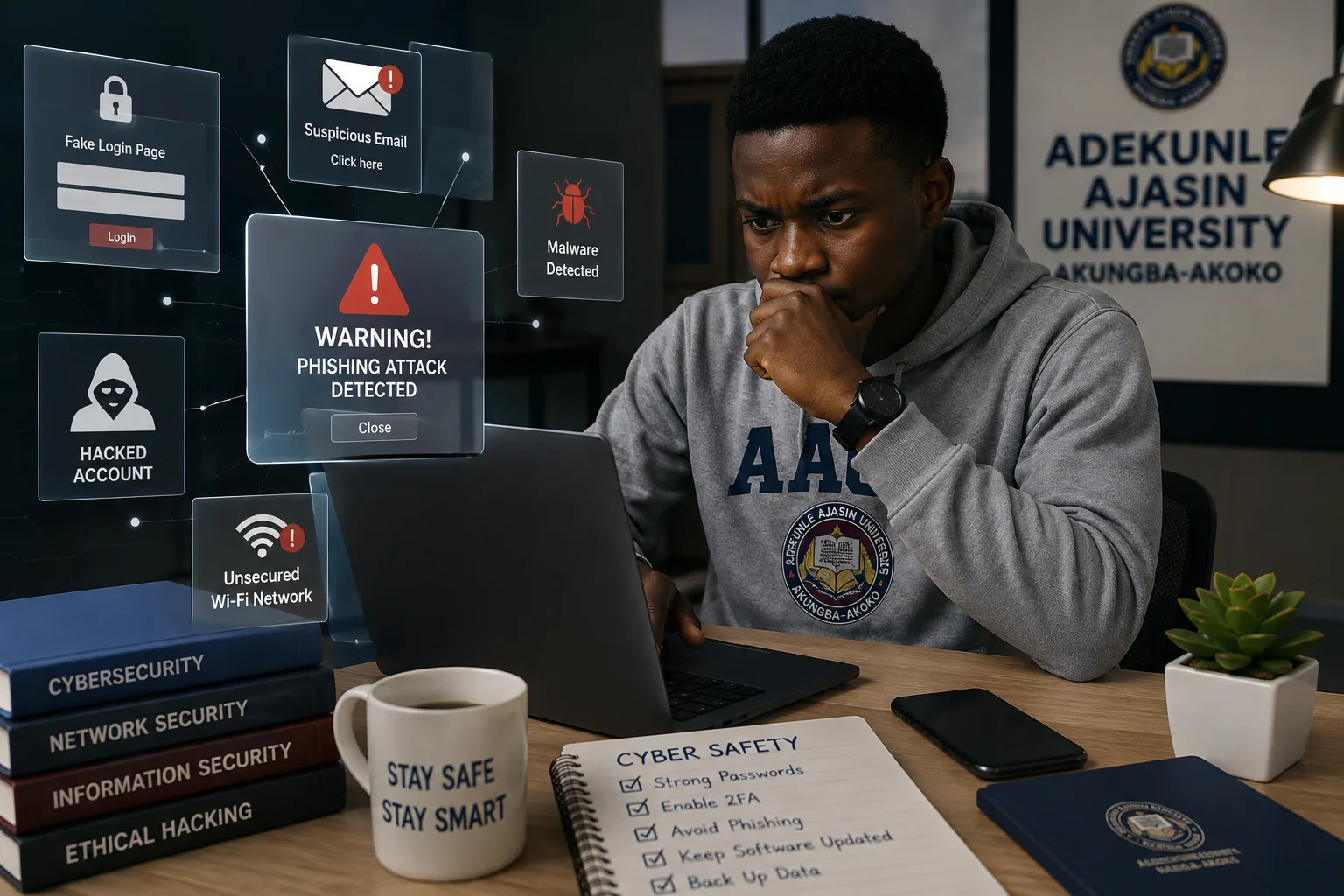

How to Stay Safe on Public Wi-Fi Around AAUA: A Student's Complete Guide
Public Wi-Fi Security for Students
Public Wi-Fi AAUA, Cybersecurity in AAUA, Wi-Fi Security, Student Cybersecurity, Online Safety for Students, Akungba-Akoko Wi-Fi Safety
Excerpt
Public Wi-Fi can make student life easier, but unsecured networks can expose your accounts, passwords, personal information, and online activities to cyber threats. This practical guide explains how AAUA students can safely use Wi-Fi in hostels, cafés, libraries, and other public locations around Akungba-Akoko while reducing the risk of phishing, account theft, malware, and other cyberattacks.
Introduction
For many university students, internet access is essential.
Students use Wi-Fi to attend online classes, download lecture materials, submit assignments, communicate with classmates, research academic topics, access university services, stream educational content, and stay connected with friends and family.
Around a university environment such as Adekunle Ajasin University (AAUA), students may connect to different networks while moving between accommodation, study areas, cafés, businesses, and other public locations.
The convenience is obvious—but connecting to an unfamiliar Wi-Fi network without taking basic security precautions can create unnecessary cybersecurity risks.
A network named "Free Wi-Fi", "Campus Internet", or something similar does not automatically mean it is legitimate or secure.
If you are new to cybersecurity, start with our main guide, Cybersecurity in AAUA: The Complete Guide to Staying Safe in Akungba-Akoko.
You should also read a practical cybersecurity checklist for Every Student, which covers the everyday security habits that help protect your accounts and devices.
What Is Public Wi-Fi?
Public Wi-Fi refers to wireless internet access made available to people in places such as cafés, restaurants, libraries, hotels, airports, schools, businesses, and other public spaces.
Some networks are password-protected while others are completely open.
The important thing to remember is that the presence of a password does not automatically make a Wi-Fi network trustworthy.
A network can still be poorly configured, compromised, or impersonated.
Why Can Public Wi-Fi Be Risky?
When you connect your phone or laptop to a network, your device communicates with other network infrastructure before reaching the internet.
If the network is poorly secured, several risks can arise:
- Fake Wi-Fi networks designed to imitate legitimate ones.
- Attempts to redirect users to malicious websites.
- Theft of login credentials through phishing.
- Exposure of sensitive information on poorly secured connections.
- Malware distribution through malicious downloads.
- Unauthorized access to devices that are improperly configured.
- Tracking or monitoring of network activity.
This does not mean that every public Wi-Fi network is dangerous. It means you should treat unfamiliar networks with caution.
1. Verify the Network Before Connecting
One of the simplest protections is also one of the most important.
Before connecting to Wi-Fi in a café, hostel, business, or public location, ask someone responsible for the location for the correct network name.
For example, if you see several networks with similar names, don't simply choose the one with the strongest signal.
A malicious person could create a network with a name designed to look legitimate.
Before connecting:
- Confirm the exact network name.
- Ask staff or the network administrator for the password if required.
- Avoid networks with suspicious names.
- Don't assume the strongest signal is the safest network.
2. Avoid Banking on Untrusted Public Wi-Fi
One of the most important rules for students is simple:
Avoid performing sensitive financial transactions over unfamiliar public Wi-Fi.
If you need to transfer money, check your bank account, or perform another sensitive financial activity, consider switching to your mobile data or another trusted connection.
This is especially important because financial accounts contain highly sensitive information.
If you must perform sensitive activities online, make sure you are using the official banking application or website and that your device is properly secured.
3. Don't Enter Your Passwords on Suspicious Pages
Sometimes a Wi-Fi network may require you to open a login page before accessing the internet.
This is commonly known as a captive portal.
However, don't assume every login page you encounter is legitimate. Be particularly cautious if a page unexpectedly asks for:
- Your email password.
- Your student portal password.
- Your banking password.
- your social media password.
- Your ATM PIN.
- An OTP or authentication code.
A Wi-Fi access page should not normally require you to hand over unrelated account credentials. If something looks suspicious, disconnect and verify the network.
4. Check the Website Before Entering Sensitive Information
Before entering a password or personal information, check the website address.
Look for:
- The correct domain name.
- HTTPS encryption.
- Spelling errors in the website address.
- Unexpected redirects.
- Suspicious pop-ups.
Remember that HTTPS is important but does not prove that a website is legitimate. A scam website can also use HTTPS. The domain itself needs to be verified.
5. Turn Off Automatic Wi-Fi Connection
Many smartphones and laptops can automatically connect to previously saved networks. This can become a problem when you move between different locations.
Your device may attempt to connect automatically to a network with a familiar name.
To reduce this risk:
- Turn off automatic connection for networks you don't need.
- You can also remove old or unused Wi-Fi networks from your device.
6. Keep Your Phone and Laptop Updated
Cybersecurity isn't only about the Wi-Fi network. Your device also needs protection.
Software updates often contain security fixes that address vulnerabilities.
Before using public networks regularly:
- Update your operating system.
- Update your browser.
- Update your apps.
- Update your security software.
- Restart your device when necessary to complete updates.
An outdated device can have vulnerabilities that attackers may exploit.
7. Use Mobile Data for Sensitive Activities
One of the easiest alternatives to questionable public Wi-Fi is your mobile network.
For example, if you're connected to public Wi-Fi and need to:
- Access your bank account.
- Reset an important password.
- Make a financial transaction.
- Access sensitive personal information.
Disconnect from the public Wi-Fi and switch to mobile data where practical. This isn't a guarantee of security, but it can reduce the risks associated with an untrusted local Wi-Fi network.
8. Use a VPN Carefully
A reputable VPN can encrypt network traffic between your device and the VPN service, which can provide additional protection when using untrusted networks.
However, a VPN is not a magic cybersecurity shield. It does not protect you from:
- Phishing websites.
- Fake login pages.
- Malware you voluntarily download.
- Weak passwords.
- Social engineering.
- Scammers pretending to be someone you know.
If you use a VPN, choose a reputable provider and understand its privacy policy. Avoid downloading random "free VPN" applications from unknown sources.
9. Disable File Sharing
If you're using a laptop on a public network, review your file and device-sharing settings.
You generally don't want your computer unnecessarily exposing shared folders or services to other devices on an unfamiliar network.
Where available, set the network profile to Public rather than Private/Home when using an unfamiliar network. This can help your operating system apply more restrictive network-sharing settings.
10. Avoid Downloading Unknown Files
Public Wi-Fi can make it easy to download files quickly. But the internet connection itself doesn't make a file trustworthy.
Be cautious with:
- Cracked software.
- Pirated applications.
- Unknown APK files.
- Suspicious PDFs.
- Fake antivirus programs.
- Unofficial browser extensions.
- Files sent by strangers.
A file containing malware can compromise your device regardless of whether you downloaded it over Wi-Fi or mobile data.
11. Don't Ignore Browser Security Warnings
If your browser displays a warning about a website, don't automatically click through it.
Warnings can indicate problems such as:
- Invalid certificates.
- Suspicious websites.
- Malware.
- Phishing attempts.
- Unsafe connections.
If you don't understand the warning, the safest approach is usually to leave the page and verify the website independently.
12. Log Out When Using Shared Computers
If you're accessing the internet from a shared computer, don't simply close the browser when you're finished.
Always:
- Log out of your accounts.
- Close browser tabs.
- Avoid saving passwords.
- Remove downloaded sensitive files.
- Clear locally stored information where appropriate.
- Make sure the next user cannot access your account.
This is particularly important for email, social media, banking, and student accounts.
13. Protect Your AAUA Accounts
Your university-related accounts may contain information that is important to your academic life.
When accessing university services:
- Use official university websites and platforms.
- Avoid login links sent by unknown people.
- Don't share your password.
- Don't save your password on public computers.
- Be cautious of unexpected messages requesting account verification.
If you receive a suspicious message claiming to come from the university, verify it through an official university channel before taking action.
14. Watch Out for Fake Wi-Fi Login Pages
A fake Wi-Fi login page may be designed to collect your information.
For example, you might connect to a network and immediately see a page asking for:
“Enter your email and password to continue.”
Before entering anything, ask yourself: Why does this network need my personal account password? If the request doesn't make sense, don't provide the information.
15. Forget the Network When You're Finished
After using a public network that you don't expect to use again, consider removing or forgetting it from your device.
This prevents your device from automatically attempting to reconnect later.
On most devices, this can be done through the Wi-Fi settings.
What If You Already Connected to a Suspicious Wi-Fi Network?
Don't panic. Connecting to an unfamiliar network does not automatically mean your device has been hacked. However, if you entered sensitive information or noticed unusual activity, take precautions.
Do the following:
- Disconnect from the network.
- Change passwords for potentially affected accounts.
- Enable multi-factor authentication.
- Check your account login activity.
- Scan your device for malware.
- Monitor your financial accounts if financial information was involved.
- Contact the relevant service provider if you notice unauthorized activity.
If you believe your university account has been compromised, contact the appropriate university ICT support channel.
Public Wi-Fi Safety Checklist for AAUA Students
Before connecting:
- [ ] Verify the network name.
- [ ] Confirm the network with the responsible business or organization.
- [ ] Turn off automatic Wi-Fi connections.
- [ ] Make sure your device is updated.
While connected:
- [ ] Avoid sensitive financial transactions.
- [ ] Don't enter passwords into suspicious pages.
- [ ] Avoid downloading unknown files.
- [ ] Don't ignore browser security warnings.
- [ ] Keep file sharing disabled where appropriate.
After connecting:
- [ ] Log out of sensitive accounts.
- [ ] Disconnect when finished.
- [ ] Forget networks you don't need.
- [ ] Monitor important accounts for unusual activity.
For a broader daily security routine, read A practical cybersecurity checklist for every Student.
Frequently Asked Questions
Is public Wi-Fi safe for AAUA students?
Public Wi-Fi can be used safely with appropriate precautions, but students should avoid treating unfamiliar networks as automatically trustworthy. Verify the network, keep devices updated, avoid suspicious websites, and avoid sensitive activities when the network cannot be trusted.
Can someone hack my phone through Wi-Fi?
Connecting to a malicious or poorly secured network can increase your exposure to certain attacks, but simply connecting does not automatically mean your phone has been hacked. Keeping your operating system and apps updated and following safe network practices can reduce risk.
Should I use public Wi-Fi for online banking?
It is better to use mobile data or a trusted network for sensitive financial activities whenever possible.
Does HTTPS make public Wi-Fi completely safe?
No. HTTPS helps protect the connection between your browser and a website, but it does not protect you from phishing, fake websites, malware, or other forms of social engineering.
Is a VPN enough to protect me?
No. A reputable VPN can provide additional privacy and protection on an untrusted network, but it cannot stop you from entering your password into a phishing website or downloading malware.
Conclusion
Public Wi-Fi is an important convenience for students, especially when reliable internet access isn't always available. But convenience should not come at the expense of cybersecurity.
Whether you're studying, researching, communicating with classmates, or accessing university services around AAUA and Akungba-Akoko, develop the habit of checking the network before connecting and thinking carefully before entering sensitive information.
Remember the basics:
- Verify.
- Connect carefully.
- Protect your accounts.
- Keep your devices updated.
- Think before you click.
And if you haven't read them yet, continue your cybersecurity journey with:
- Previous Cluster Post: Common Cyber Threats Facing AAUA Students (And How to Avoid Them)
- Earlier Cluster Post: A Practical Cybersecurity Checklist for Every Student
- Pillar Guide: Cybersecurity in AAUA: The Complete Guide to Staying Safe in Akungba-Akoko
- Next Recommended Article: How to Protect Your Student Portal and Email Account from Cyber Attacks
Comments
No comments yet. Start the conversation.